Tutorial 6 of 6
Frames, presentations and working together
Intermediate 6 min
Turn frames into slides and present them full screen, use the hand-drawn look, and share a board in a workspace where everyone's changes merge.
A board can hold a whole story: several frames side by side, each one a slide. This tutorial shows how to present frames and how to share a board with other people.
Frames
Frame (slide) (key F) draws a labelled area. Everything inside belongs to the frame visually, but stays an ordinary element you can move on its own. Give the frame a title (select it and press Enter). Set its Slide number on the right to choose the order in a presentation. Without numbers, frames are shown from left to right and top to bottom.
The template Idea pitch in three slides has three frames: the problem, the idea and the next steps. It is drawn in the hand-drawn style. You can switch that look on or off for the whole board in the board settings (click an empty part of the board) or in the View menu. The drawing stays the same; only the look changes. Exports and presentations keep the look.
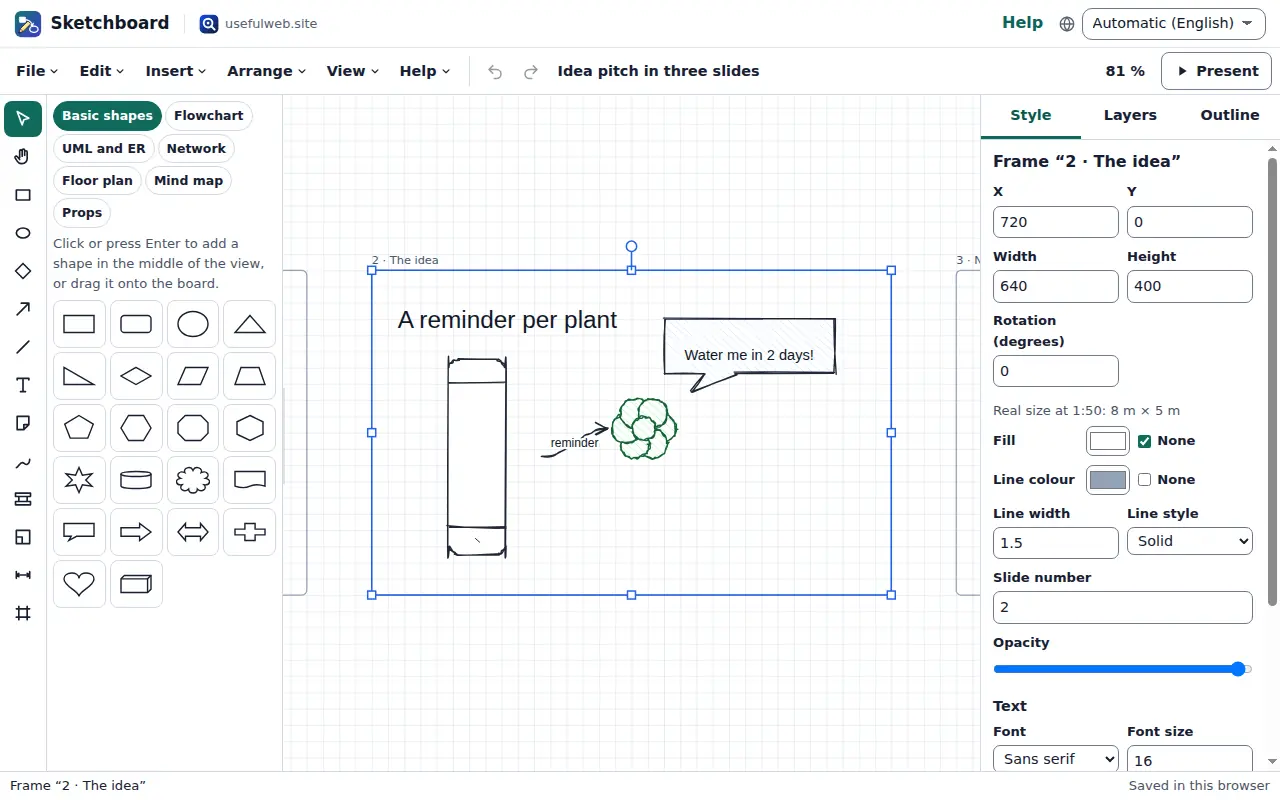
Present
Choose Present at the top right, or View → Present frames as slides. Sketchboard shows one frame at a time on a dark background, full screen where the browser allows it:
- Right arrow, Page down or Space go to the next slide, and Left arrow or Page up go back.
- Home and End jump to the first and the last slide, and a click on the slide moves on.
- Escape ends the presentation and returns to where you were.
The bar at the bottom shows the slide number and the frame's title. Screen readers announce each new slide.
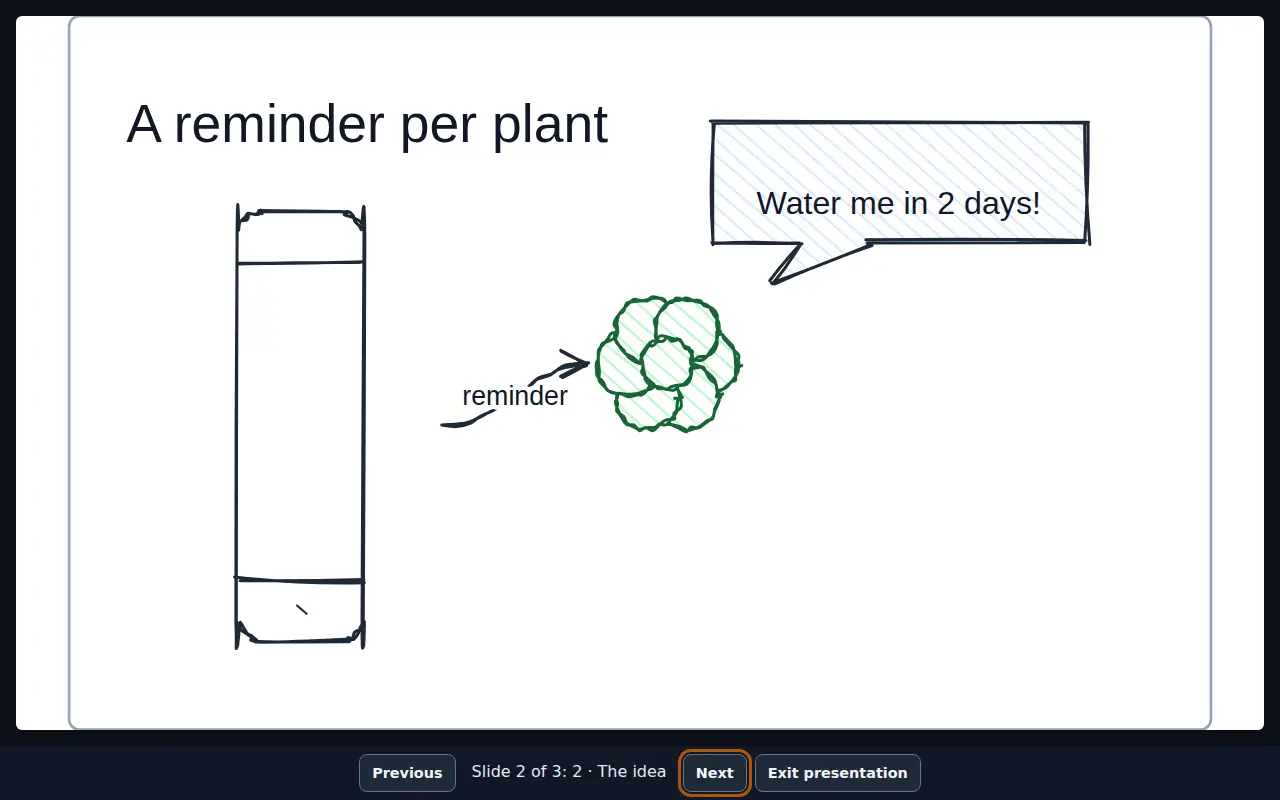
To hand the slides out, export them with File → Export… → PDF document → One page per frame (slides).
Work on a board together
When you are signed in to usefulweb, File → Save to workspace… puts the board into a shared workspace. From then on every change is saved there within a second or two, and the people you invite see it live. File → Share and permissions… controls who may edit and who may only look. Viewers get a read-only board.
When two people change the board at the same moment, Sketchboard merges the changes element by element. If you move a box while someone else recolours another one, both changes are kept. If you both change the same detail of the same element, the later save wins, and a note lists what was affected. New elements from both sides are kept; an element one person deleted while the other changed it is kept.
Open from workspace… opens a shared board on another device. Stop syncing with the workspace turns the board back into a private board in this browser. Signed out, Sketchboard works fully on its own, and nothing leaves your browser unless you export or share it.
Ready to try it?