Tutorial 1 of 6
Your first board in five minutes
Beginner 6 min
Draw shapes, join them with arrows that stay attached, change colours and lines, and keep the board in your browser — the basics of Sketchboard.
Sketchboard is a drawing board for ideas: boxes, arrows, notes and sketches on a board that never ends. You can pan and zoom as far as you like. Everything is saved in this browser while you work; you do not need an account.
Open a template or start empty
The first time you open Sketchboard it shows the template Idea pitch in three slides. Choose File → New from a template… for the others:
- Sign-up flowchart, a process with decisions
- Project kickoff mind map
- Two-room flat at 1:50, a floor plan
- Office network
- Shop data model, tables for a database
- Idea pitch in three slides
File → New board starts with an empty board. Your boards are listed under File → Recent boards….
Draw shapes
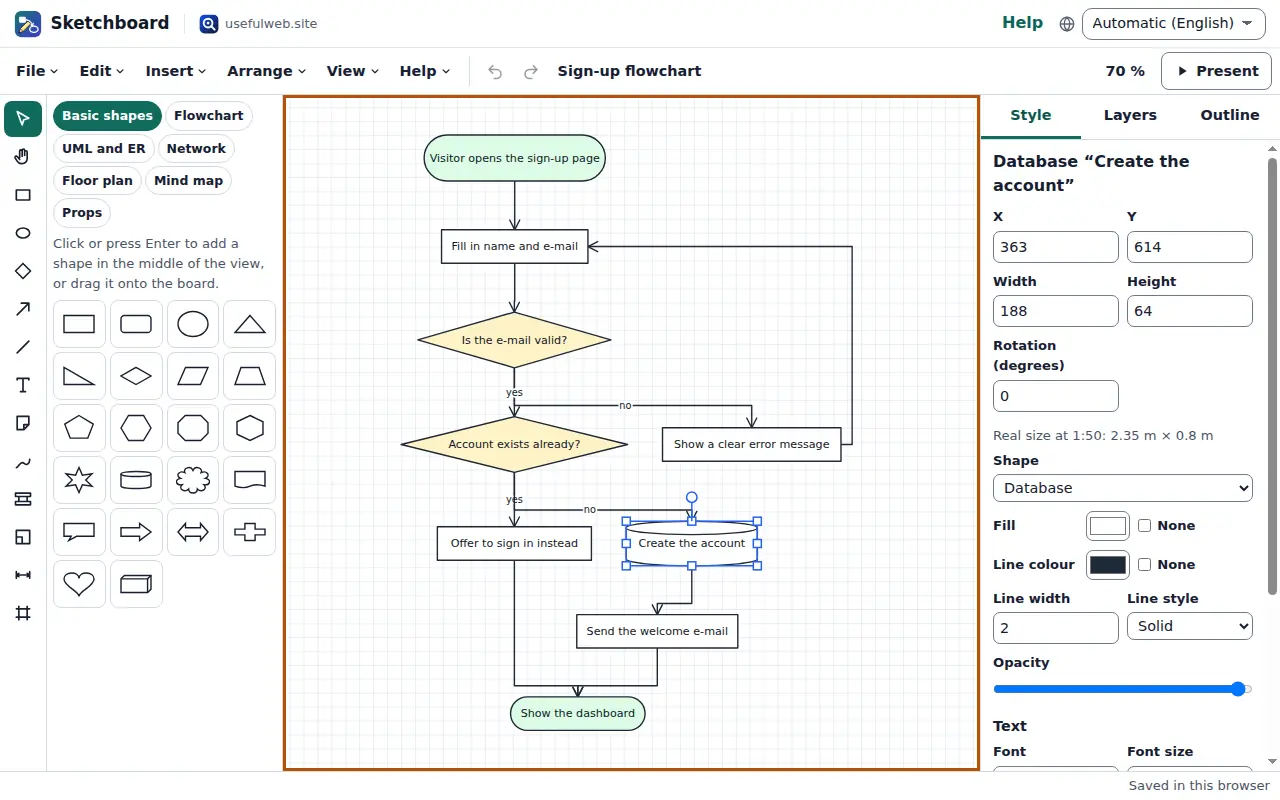
The narrow bar on the left holds the drawing tools. Choose Rectangle (key R), Ellipse (O) or Diamond (D) and drag on the board. Hold Shift while dragging to get a square or a circle. The library beside the tools has many more shapes, grouped into Basic shapes, Flowchart, UML and ER, Network, Floor plan and Mind map. Click a shape (or select it and press Enter) to add it in the middle of the view, or drag it to the place you want.
To write inside a shape, select it and press Enter, or double-click it. Escape or a click elsewhere ends the editing.
Connect shapes with arrows
Choose Arrow (key A) and drag from one shape to another. While you drag, the sides of the shape under the pointer light up. Drop on a side to glue the arrow to that side, or anywhere on the shape to let Sketchboard pick the side that faces the other end. Glued arrows follow when you move the shapes.
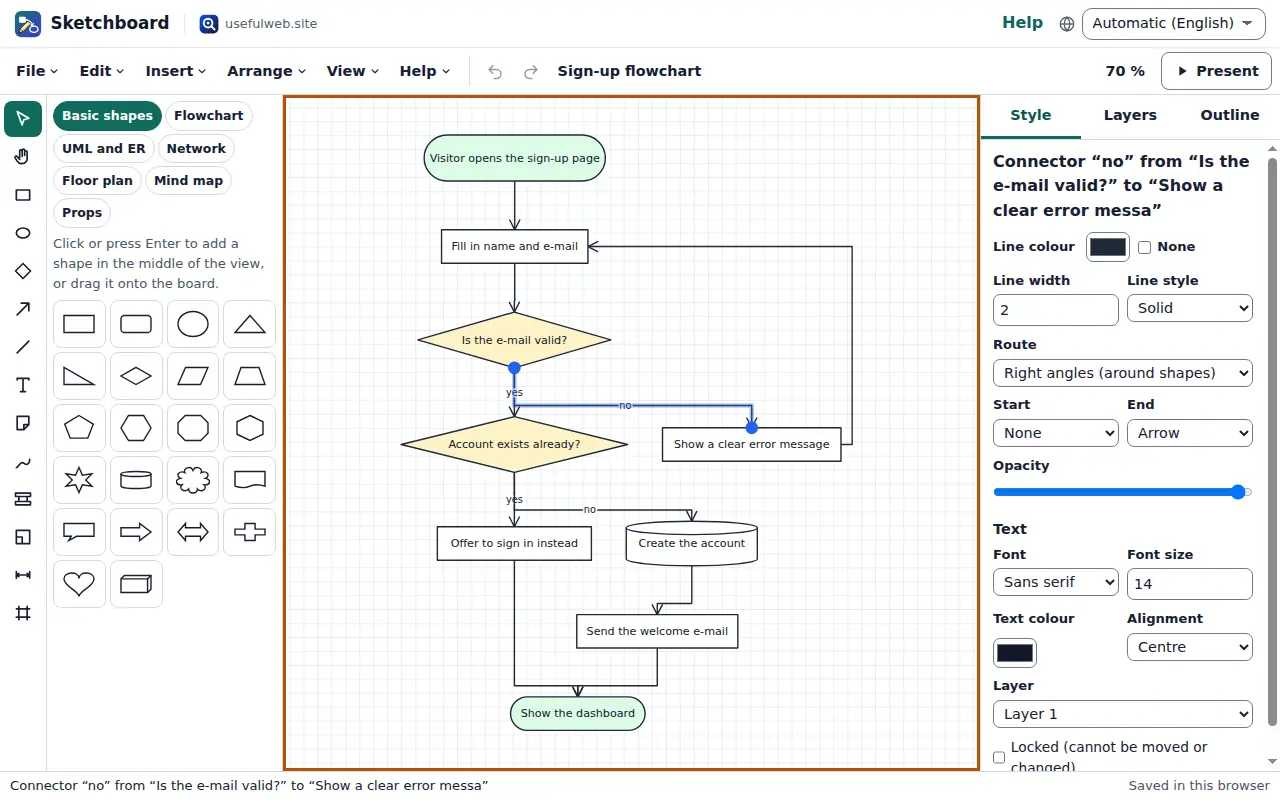
Select an arrow to change it on the right:
- Route: Straight, Right angles (around shapes) or Curved. Right-angled arrows find a way around boxes in between.
- Start and End set the arrowheads, from a plain arrow to the crow's feet used in data models.
- Text puts a label on the arrow, such as yes or no.
Style, arrange and undo
The Style tab shows the settings of whatever is selected: fill and line colour, line width and style (solid, dashed, dotted), opacity, font, font size and alignment. With nothing selected it shows the board settings, including Hand-drawn style, which redraws the whole board with sketchy lines.
Arrange in the menu aligns and spreads out several shapes, changes the order (bring to front, send to back), rotates by 90° and runs the automatic layout. Ctrl+G groups shapes so they move together, Ctrl+L locks them, Ctrl+D duplicates them and Ctrl+Z undoes the last step.
Where your board is kept
The bottom right corner shows Saved in this browser a moment after every change. To take a board elsewhere, use File → Save board file (Ctrl+S), which saves a .sketchboard.json file you can open again with File → Open file…. Boards stay in this browser until you delete them under Recent boards…. Clearing the browser's site data removes them, so keep a file of boards that matter.
Ready to try it?