Tutorial 2 of 6
Flowcharts from text and automatic layout
Beginner 6 min
Type a flowchart as Mermaid text, let Sketchboard lay it out with arrows routed around the boxes, and tidy up any diagram with one command.
Drawing a flowchart box by box takes time. If you already know the steps, it is faster to write them down and let Sketchboard draw them. This tutorial shows two ways to do that: flowcharts from text and auto layout.
Write the flowchart as text
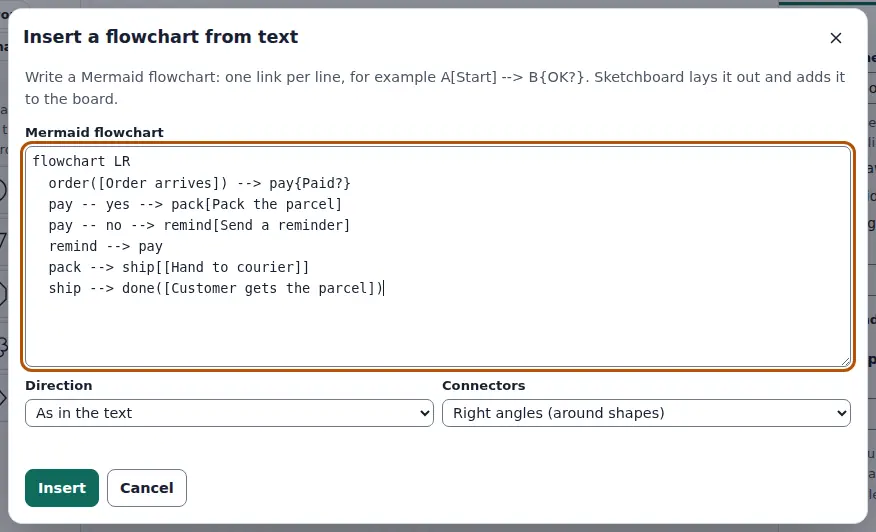
Choose Insert → Flowchart from text (Mermaid)…. The dialog takes the flowchart part of Mermaid, a common way of writing diagrams as text. Every line links two steps:
flowchart LR
  order([Order arrives]) --> pay{Paid?}
  pay -- yes --> pack[Pack the parcel]
  pay -- no --> remind[Send a reminder]
  remind --> pay
  pack --> ship[[Hand to courier]]
  ship --> done([Customer gets the parcel])
The first word of a line is a short name for the step. The brackets after it give the text and the shape:
[ ]is a box and( )a rounded box.([ ])is a start or end (terminator) and{ }a decision diamond.[( )]is a database,[[ ]]a predefined process and{{ }}a preparation hexagon.
--> draws an arrow, --- a plain line and -.-> a dotted arrow. A label goes between dashes (-- yes -->) or in bars (-->|yes|). The direction after flowchart can be TD (top down), LR (left to right), BT or RL.
Choose Insert. Sketchboard sizes the boxes to their text and puts them in rows so that few arrows cross. It draws the arrows with right angles around the boxes. A link that goes back to an earlier step, like Send a reminder → Paid?, is drawn around the outside so it does not cover the forward arrow.
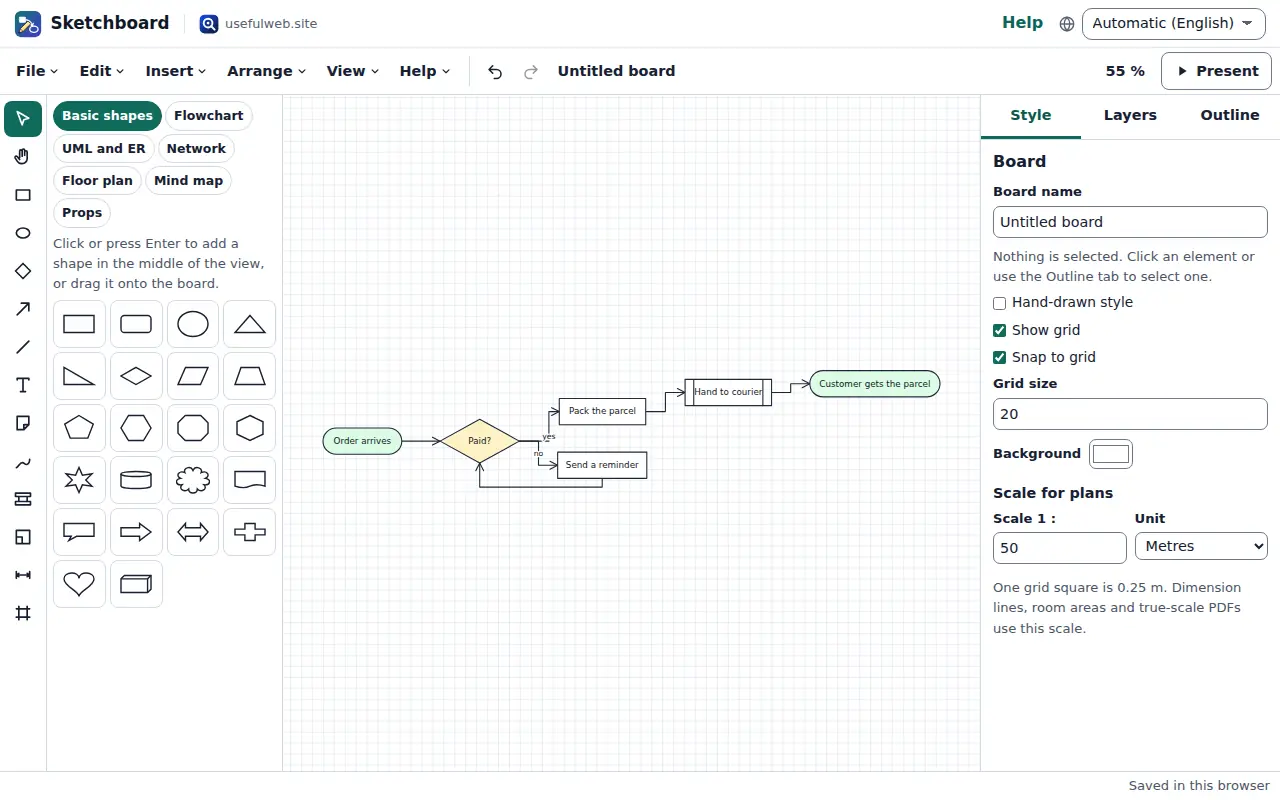
The result is an ordinary drawing. You can move boxes, recolour them, change an arrow to Curved or add notes beside it. The text you typed is kept for the next time you open the dialog.
Pasting Mermaid text onto the board (Ctrl+V) opens the same dialog with the pasted text in it.
Tidy up any diagram
Diagrams get messy as they grow. Arrange → Auto layout… rearranges the shapes that are joined by connectors:
- Layered (flowcharts, graphs) puts the shapes in rows in the direction you choose, with as few crossings as possible.
- Mind map (balanced tree) puts the central topic in the middle and spreads the branches evenly to the left and right.
- Automatic picks the mind map when the board has mind-map topics, otherwise the layered layout.
With two or more shapes selected, only the selection is arranged. Locked shapes never move, so you can lock a title or a legend first. Arrows stay glued and follow their shapes. One Ctrl+Z puts everything back.
The same engine as a tool
The tools Sketchboard Mermaid to Diagram and Sketchboard Auto Layout run the same code on the website, through the API and for AI agents. A flowchart you lay out there looks the same in the app.
Ready to try it?