Tutorial 3 of 6
Mind maps with the keyboard, and the Outline
Beginner 5 min
Grow a mind map with two shortcuts, keep it balanced automatically, and use the Outline to find, edit and connect every element without a mouse.
A mind map starts with one topic in the middle and grows outwards. In Sketchboard you can build one almost entirely with the keyboard. The Outline lists everything on the board, so the whole app can be used without seeing the drawing.
Grow a mind map
Open File → New from a template… → Project kickoff mind map, or start with the Central topic shape from the Mind map library.
Select a topic and press:
- Ctrl+Enter to add a child topic joined to the selected one
- Ctrl+Shift+Enter to add a sibling topic next to it, under the same parent
The new topic is selected and ready for typing. Write its text and press Escape. After every new topic Sketchboard balances the map again: first-level branches are spread over the left and right sides so both halves stay about the same height, and sub-topics are stacked under their branch.
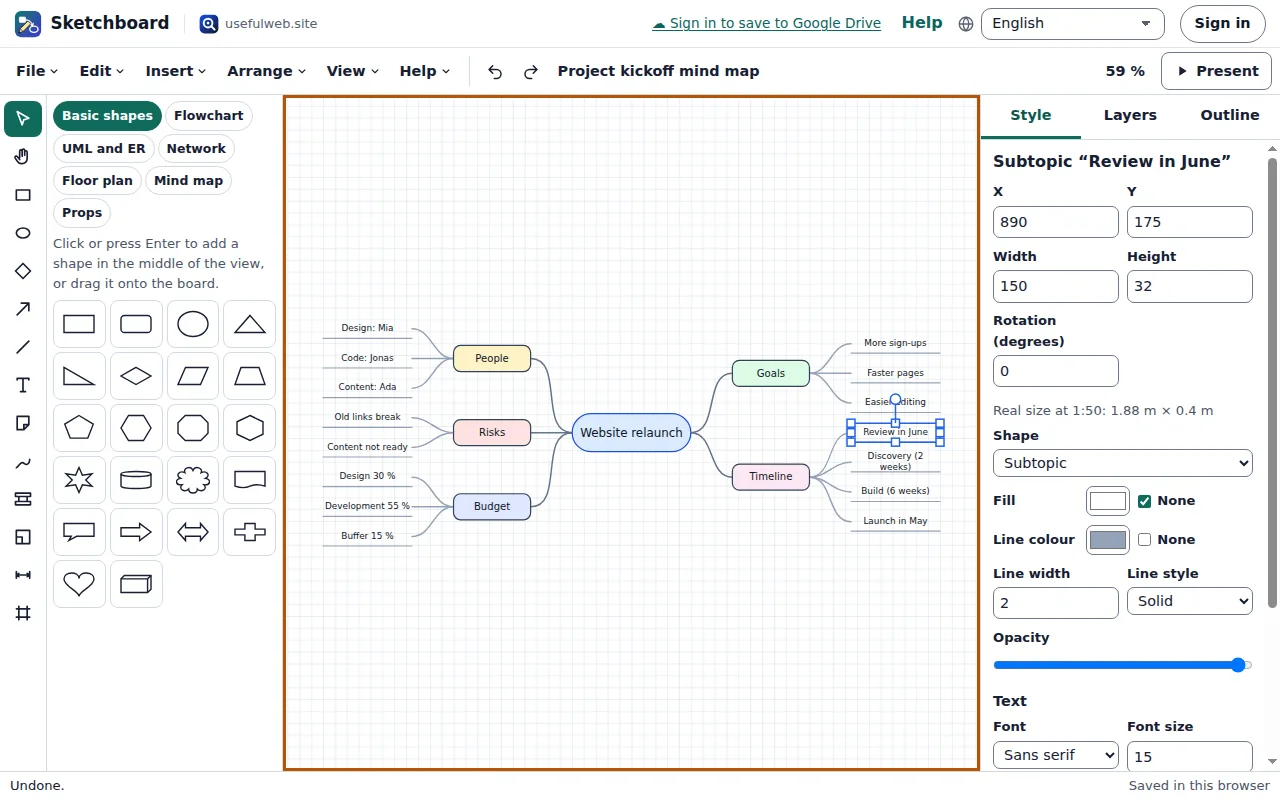
The two commands are also in the Insert menu. To re-balance a map after moving things by hand, use Arrange → Auto layout… with Mind map.
The Outline: every element as a list
Open the Outline tab on the right, or press Ctrl+Alt+O. It lists every element in drawing order with its type, text, position and size, for example Topic “Timeline” at 690, 244, 130 × 44. Connectors show where they come from and where they go. The filter field above the list narrows it down by text or type.
Selecting an entry selects the element on the board, and the board selection shows up in the list. Below the list you can change the text, position, size and the connections of the selected element. A connector's From and To can be switched to any other element. Every change is announced to screen readers.
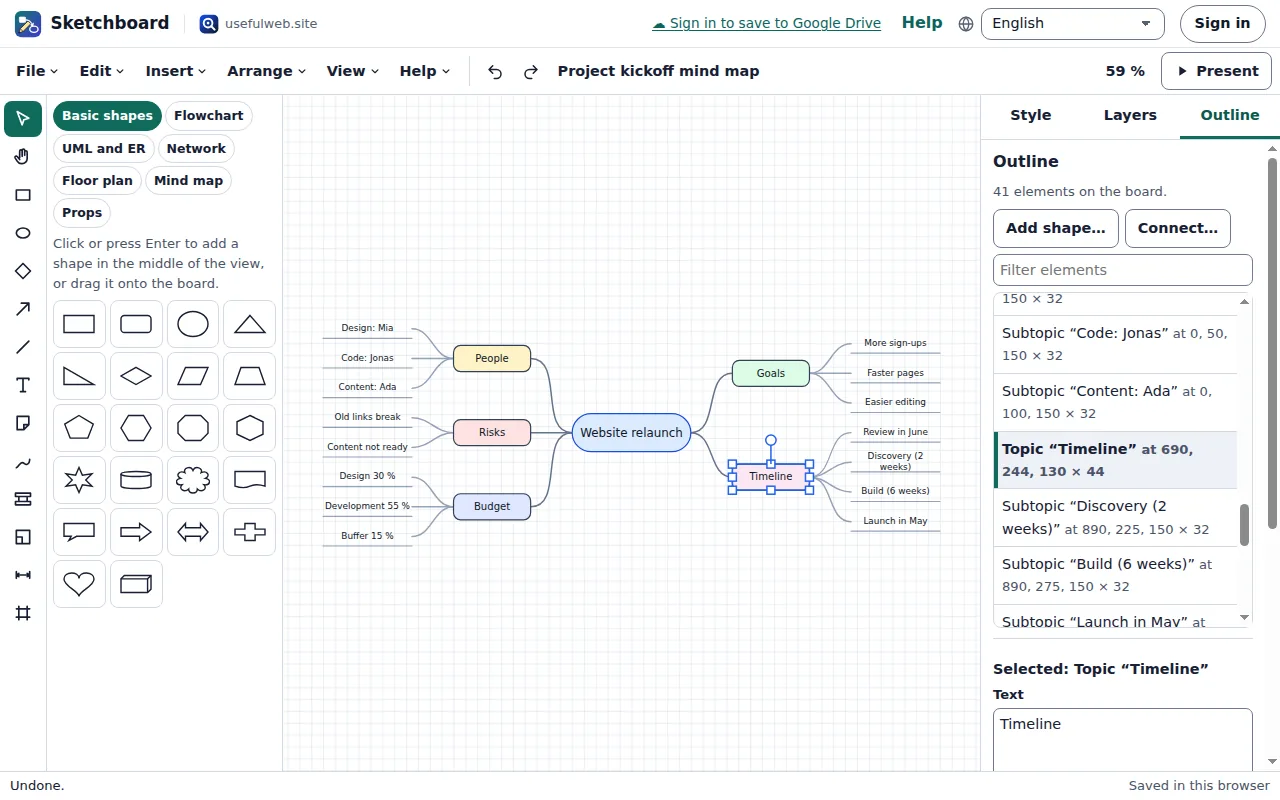
Add shape… places a new shape from any library. It can be connected to an existing element and put to the right, below, left of or above it. Connect… joins two elements with the arrowhead, route and label you choose.
Moving around with the keyboard
When the board has the keyboard focus:
- The arrow keys move the selection by one unit, and Shift+arrow moves it by one grid step.
- Enter edits the text and Delete removes the selection.
- Shift+1 fits the whole board in the window, and Ctrl+Plus / Ctrl+Minus zoom in and out.
- Single letters choose the drawing tools.
- ? lists every shortcut.
If single-letter shortcuts get in the way of your screen reader, switch them off in that list.
Ready to try it?